
RSS gives you a simple, pull-based feed of recent changes (the same events you might export to CSV or JSON). Feeds are handy for personal readers, team portals, or scripts that poll on a timer instead of receiving webhooks.
Before you use RSS
Feeds are private to your workspace. You authenticate them with your workspace API key. See Workspace API key for full steps; in short:
- Open Dashboard → Settings.
- Select API keys in the sidebar.
- On Workspace API key, use Show / Copy, or Regenerate key if the secret was exposed.
Anyone with the feed URL and key can read your change stream, so do not publish it in public docs or chats.
Workspace feed (all monitors)
Includes changes across every monitor in the workspace.
How to get the URL from the product
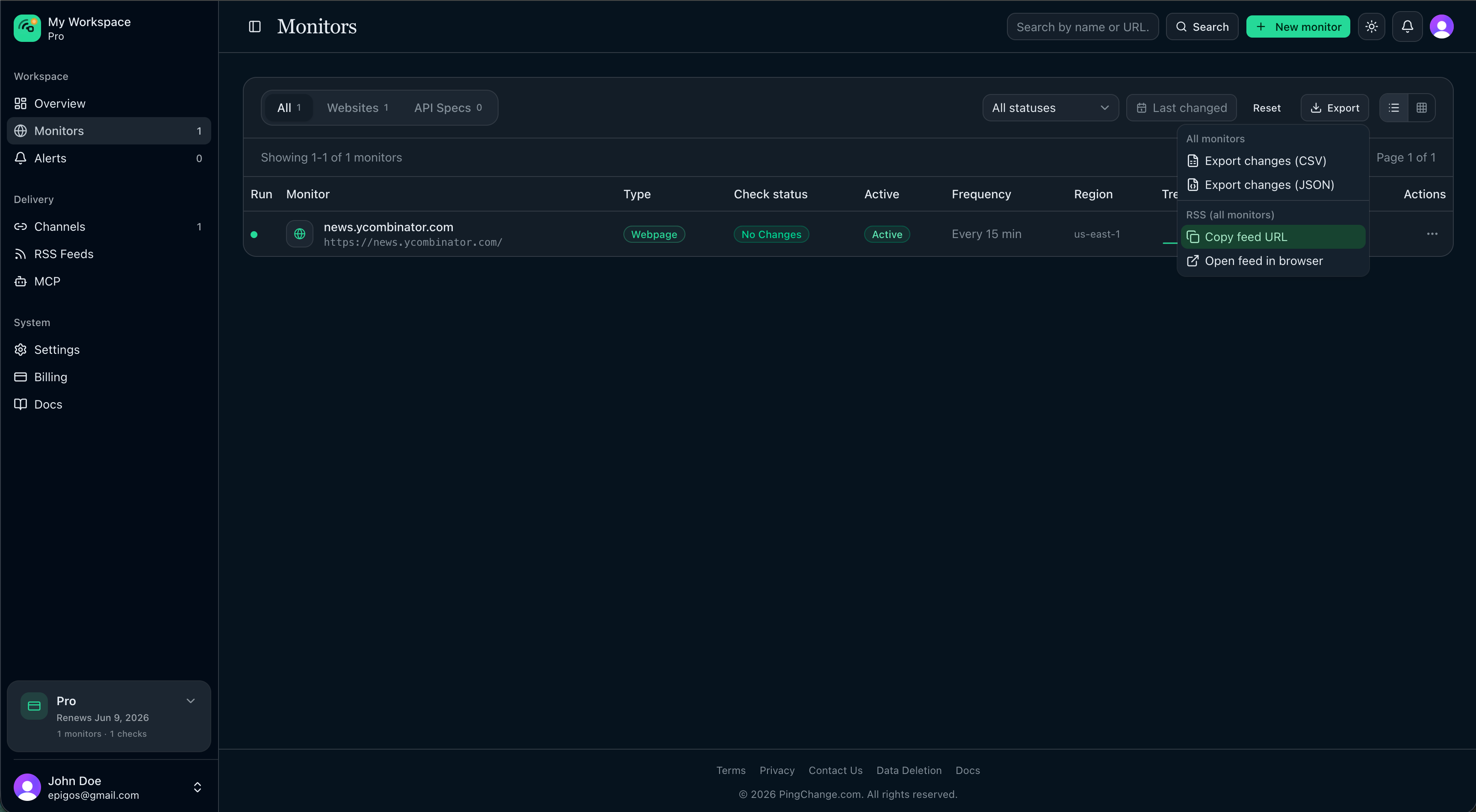
- Go to Dashboard → Monitors.
- Open the Export menu.
- Use Copy feed URL under the RSS section, or Open feed in browser to sanity-check it.
When you paste the URL elsewhere, it will look like:
https://pingchange.com/api/rss?apiKey=YOUR_KEY
Replace YOUR-APP-DOMAIN with the host where your PingChange app runs (for example pingchange.com or your company’s subdomain).
Per-monitor feed
Only includes changes for one monitor.
How to get the URL
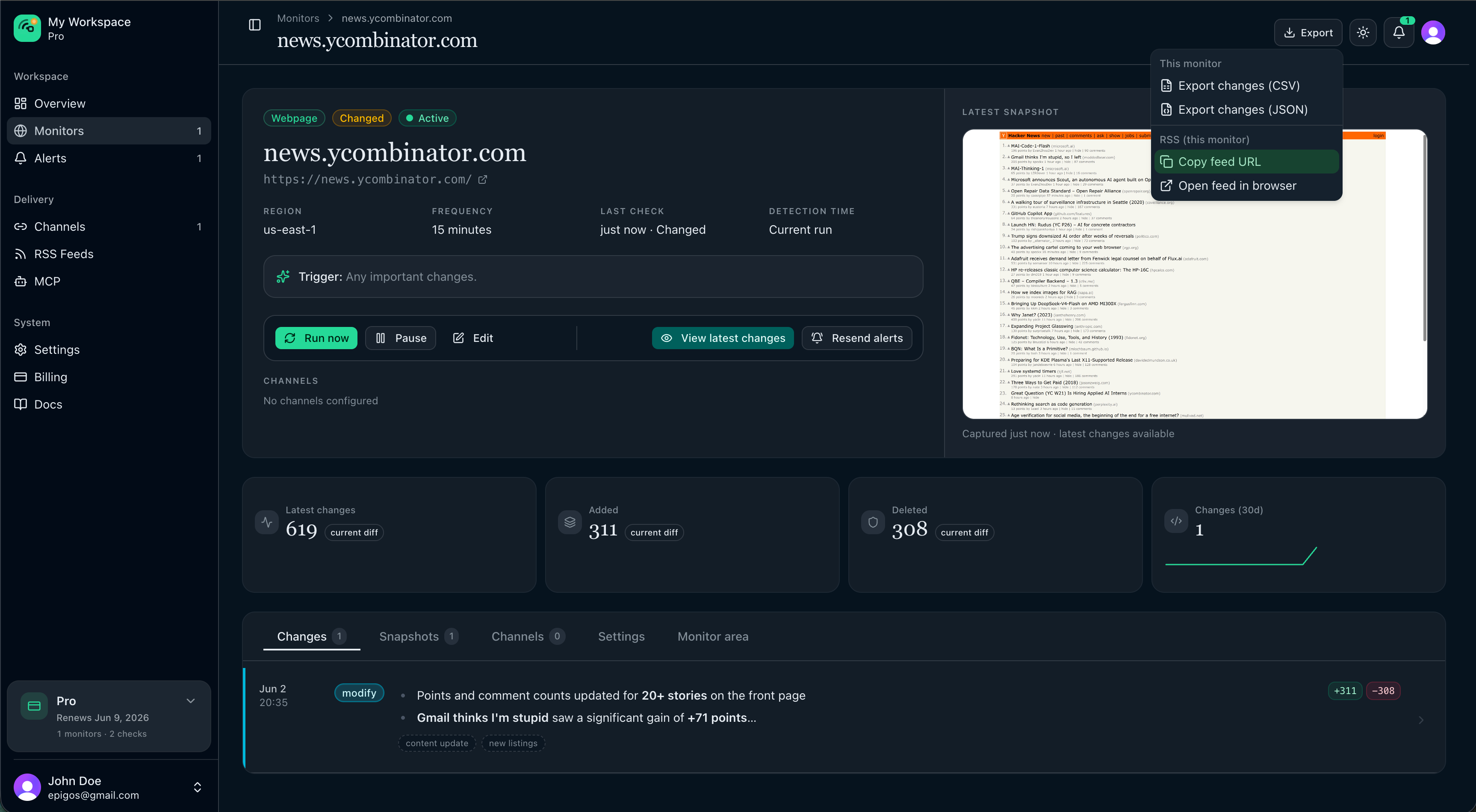
- Open that monitor’s detail page.
- Open the Export menu.
- Copy feed URL or Open feed in browser.
Template:
https://pingchange.com/api/rss/MONITOR_ID?apiKey=YOUR_KEY
Use the real monitor id from the address bar or from the copied URL.
Using the feed
- Add the URL to Feedly, NetNewsWire, Outlook, or any RSS client that supports private feeds.
- For automation, poll at a reasonable interval; RSS complements push channels like Slack rather than replacing them.
Security tips
- Treat
apiKey=like a secret query parameter — prefer HTTPS only. - Rotate the workspace API key in Settings → API keys if a URL is exposed.